ArchiCAD guide

Render your ArchiCAD models in minutes, instead of days

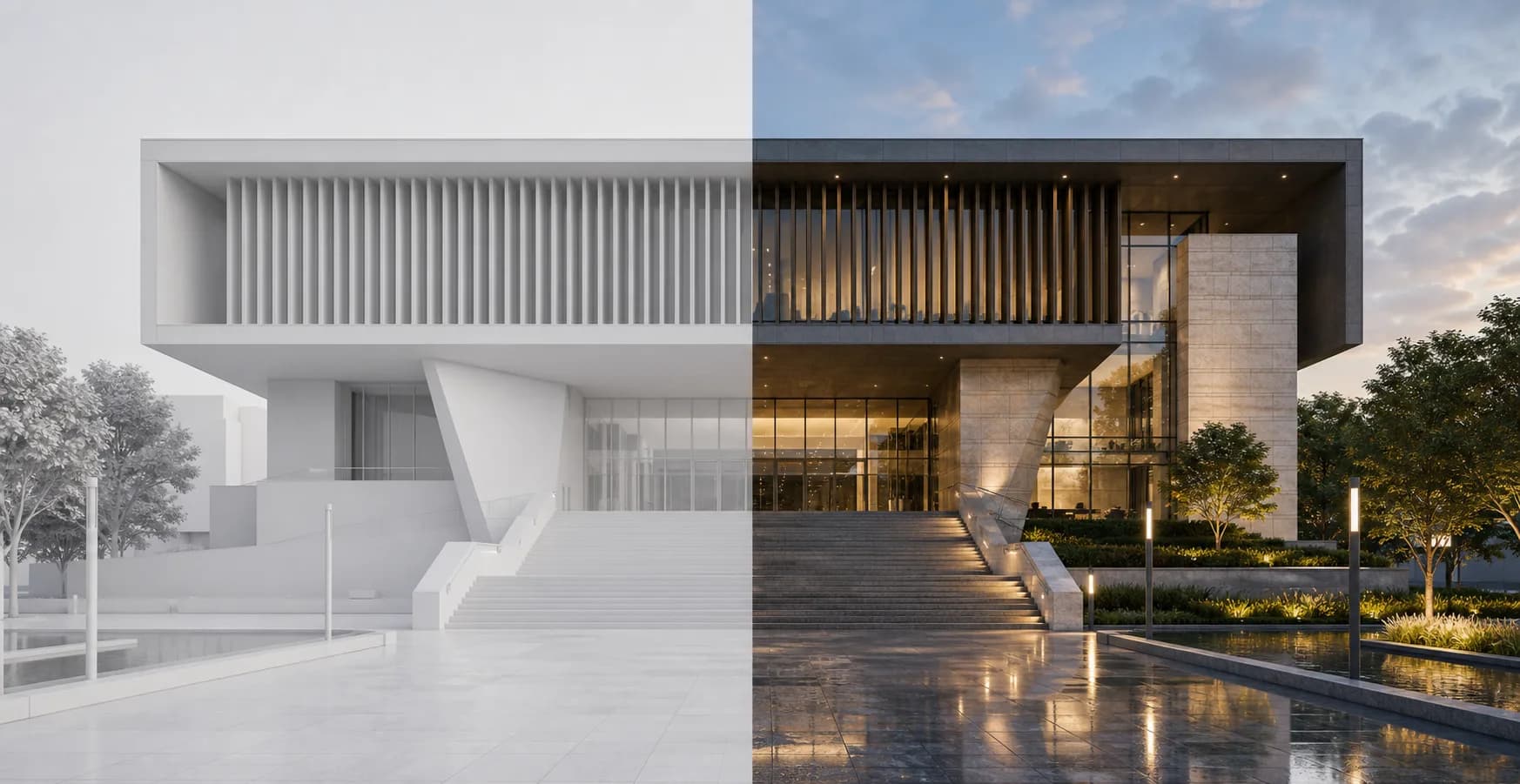
Start from a clean ArchiCAD screenshot, viewport capture, or exported scene and turn it into a precise architectural render with modes, presets, and controlled edits in Rendervi.
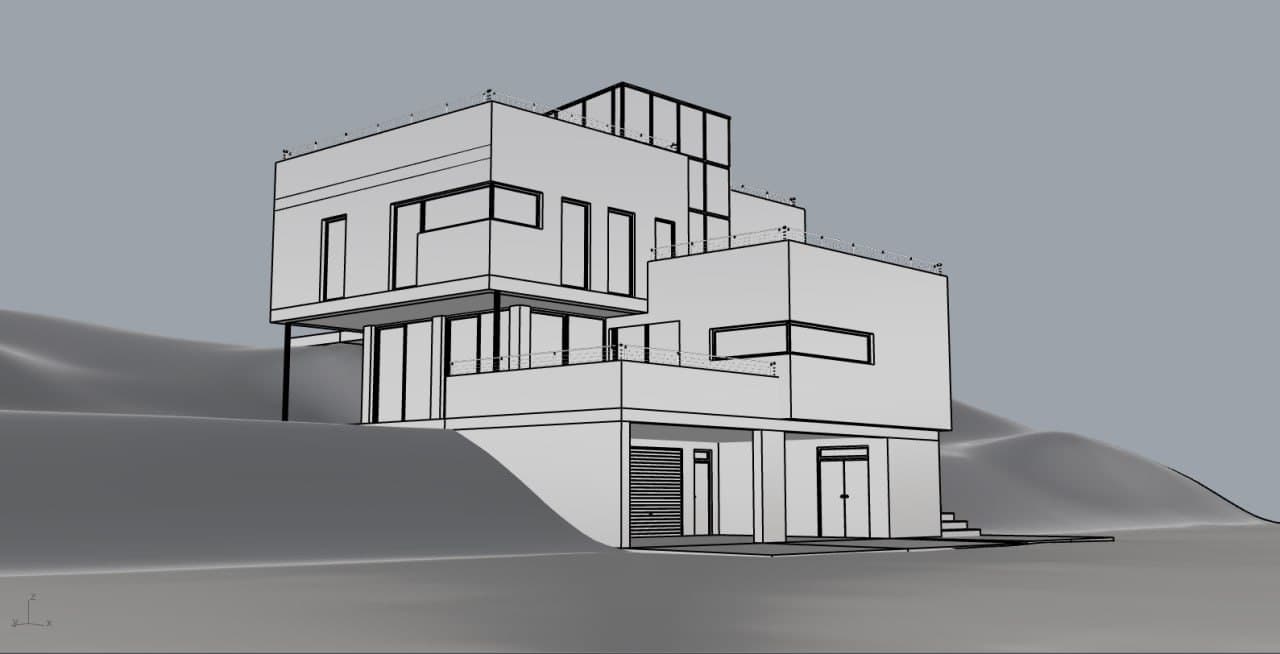
ArchiCAD model screenshot before Rendervi rendering
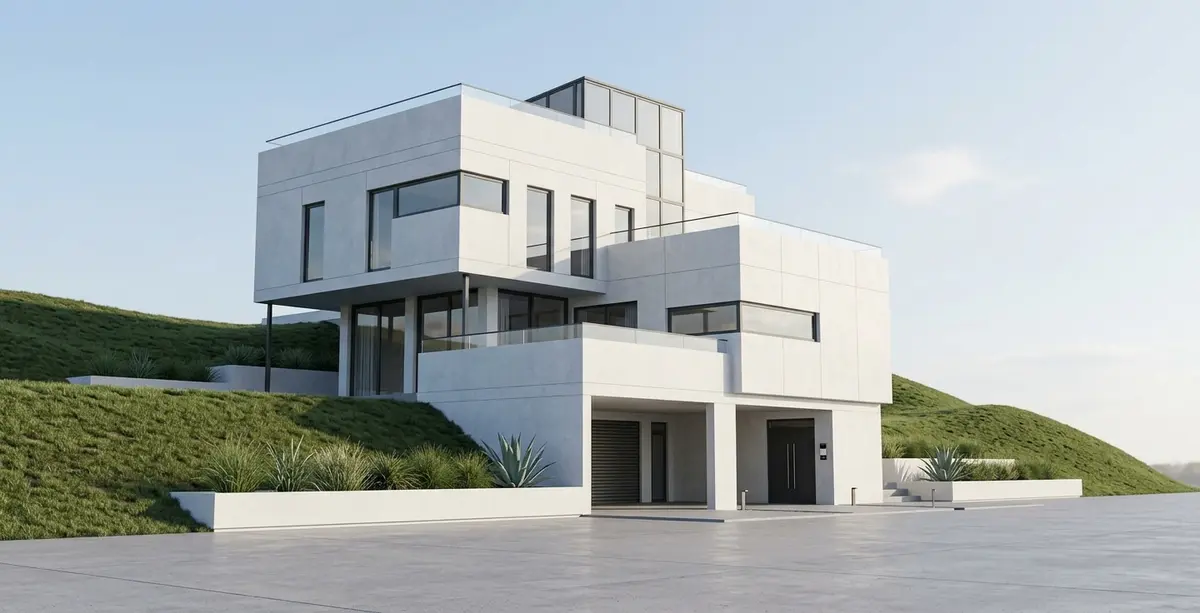
ArchiCAD screenshot turned into a finished render with Rendervi
Before
After

Workflow

How to move from ArchiCAD to a finished render workflow

Explore how you can accelerate your ArchiCAD workflow with Rendervi.

Clean ArchiCAD source view before AI rendering

Start from a clean ArchiCAD view

Export the model view, screenshot, or scene that already communicates the design clearly. The closer the input is to the view you want to present, the faster the result.

First architectural render generated from a ArchiCAD source view

Generate the first render fast

Use Rendervi modes to move from archicad 3d views, bim exports, and documentation-linked scenes into a client-ready architectural render without managing long prompt chains.
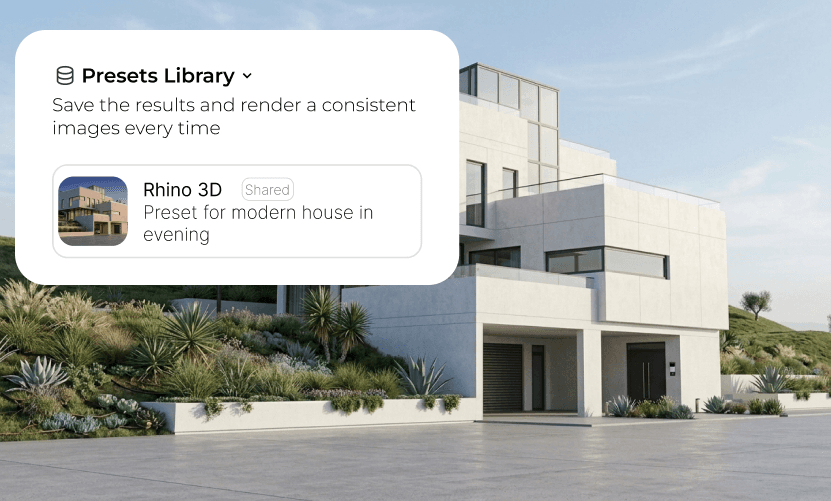
Saved preset view in Rendervi for keeping ArchiCAD renders consistent across angles

Save presets for repeat views

Once the environment and material direction look right, save them as presets so the next views in the project stay consistent.
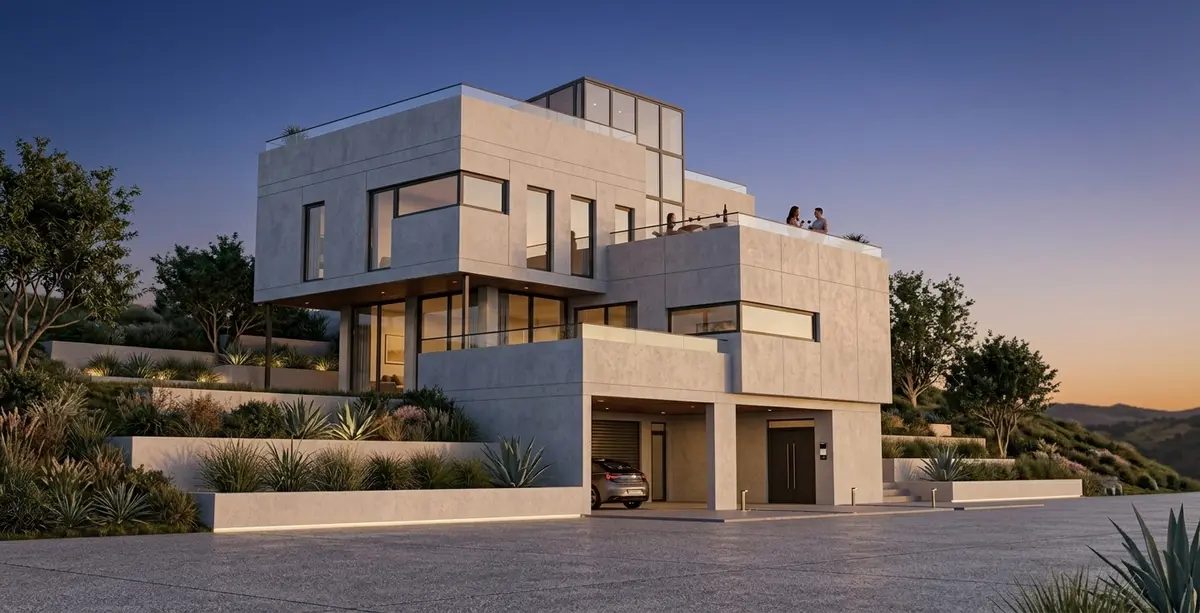
ArchiCAD render refinement view showing controlled local edits

Refine only the areas that need control

Use inpainting when you need to adjust a specific part of the image, keep the rest of the frame stable, and move faster through revisions.

AI-studio

The first fully equipped render AI studio for architects

Stop messing around with AI image generators that change your design and produce inconsistent results.

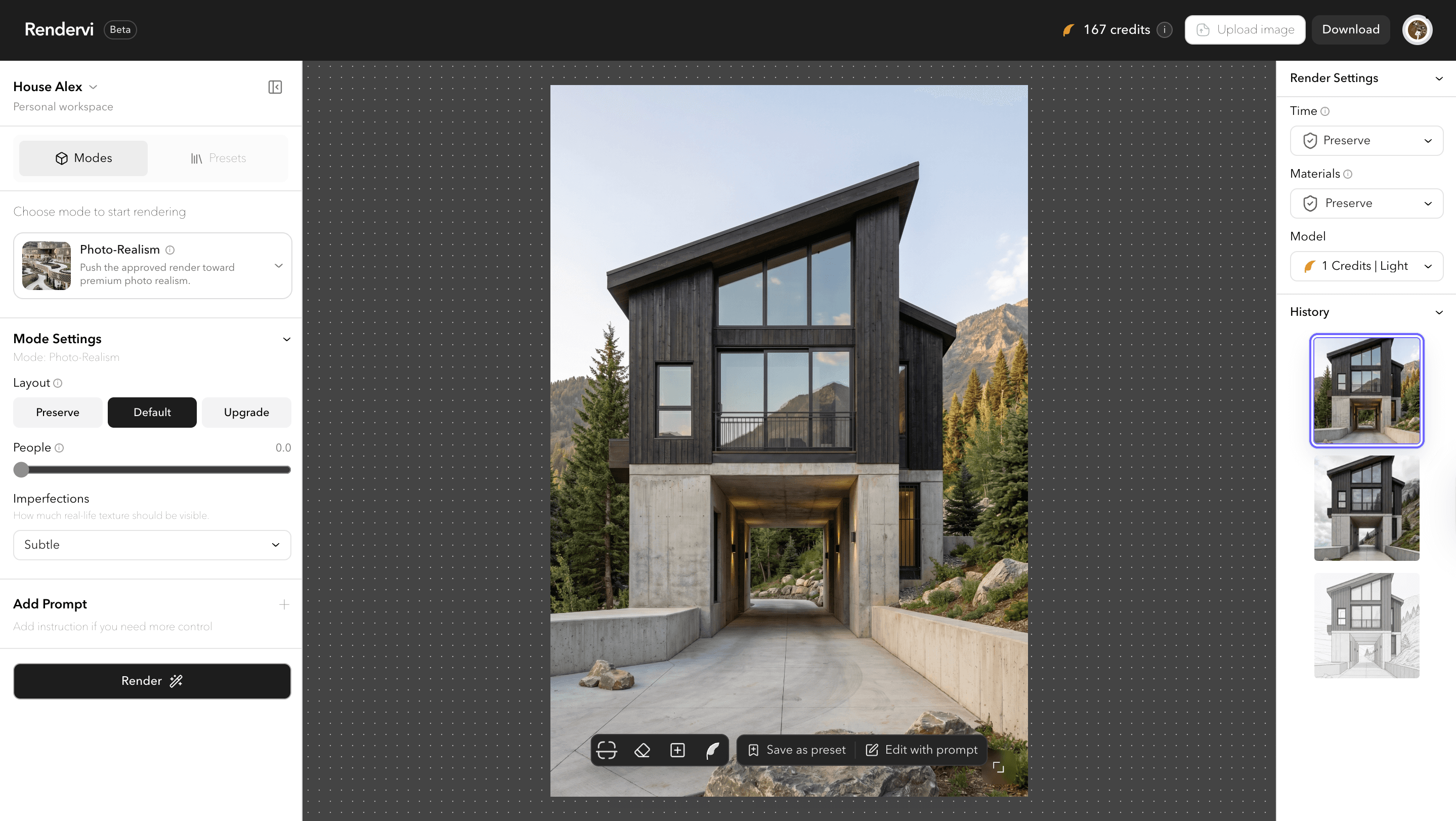
Start producing consistent renders with Rendervi. Modes help you get results fast without managing prompts, and presets can save your environment and materials across every view of your project so you can get the same results across different views. Use inpainting to select an area for render and control the result yourself.

Rendervi AI studio interface

FAQ

Frequently asked questions

Still not sure? You will get 3 free credits after sign up, so you can try the studio for yourself at no cost.

How precise is the AI render?

Rendervi is built to preserve layout, composition, and design intent as closely as possible, so the output stays useful for real architectural work instead of becoming a loose visual guess.

Is my data private?

Your architectural images and inputs stay part of your working process, and privacy is treated as a core requirement for professional teams using the studio.

What AI model do you use for rendering?

At Rendervi, we are always looking for the best image-to-image models for architectural rendering. Right now, generation runs on Nano-Banana Pro by Google. Inside the studio, we also use models such as ChatGPT and Gemini Flash to analyze visual context and help build prompts in the background. Our vision is simple: architects should focus on the design instead of choosing between models or mastering prompts, while Rendervi handles that complexity behind the scenes.

Will Rendervi launch an affiliate program?

We are preparing an affiliate program that will let partners earn free credits by referring new users to the studio. More details will be shared soon.

How do I turn a preview into a photorealistic render?

Upload your preview, choose the visual direction you want, and use Rendervi to push it into a cleaner photorealistic render without rebuilding the whole scene from scratch.

Can I turn a SketchUp model into a render?

Yes. You can start from a SketchUp export or model preview and turn it into a polished render much faster than a traditional visualization pipeline.

Can I turn a Revit model into a render?

Yes. Rendervi can help transform Revit-based previews into client-ready visuals while keeping the core design logic and geometry readable.

How do credits work, and how much does one render cost?

Credits are used when you generate or enhance images in the studio. The exact credit cost depends on the workflow and output settings, and you can start with free trial credits after sign up.

How can I render every facade with the same environment and materials?

Rendervi is designed for consistency, so you can keep the same material direction, atmosphere, and environment across multiple views instead of re-prompting each facade from scratch.

Will my AI render images have artifacts?

Like any AI workflow, artifacts can appear, but Rendervi is focused on cleaner and more controlled outputs so teams can get usable results with fewer strange details and less manual cleanup.

Do you train AI with my data?

No. Your project data is not used to train AI models.

Upscale your images with one click

Yes. If your source image is too soft for presentation, you can upscale it quickly to get a sharper result for reviews, decks, and client-facing materials.

Get access

Render your models in minutes, instead of days

Rendervi is designed for studios, designers, and marketing teams that need a faster path from a raw model to a strong, precise final image. Save time and focus on what matters most: design.