SketchUp AI Render Workflow for Architects: From Viewport to Client-Ready Image
May 17, 2026
The best SketchUp AI render workflow starts with a clear saved camera, a simple viewport export, and one controlled render pass. Use AI to improve light, materials, atmosphere, and image quality, then refine only the parts that matter for the review.

Short answer
To make a strong AI render from SketchUp, save the exact camera view first, export a clean viewport image, and use AI as an image-to-image rendering step rather than a blank prompt. The source view should explain the massing, openings, roofline, facade rhythm, and site context. Rendervi can then improve realism, materials, light, atmosphere, and resolution while keeping the project readable.
Why this workflow matters now
SketchUp now has native AI Render across Desktop, iPad, and Web. Trimble says output generation usually takes about 13 to 20 seconds, and the tool includes prompt, erase, paint, and sketch controls for generative edits. That is a real shift: AI rendering is no longer a side experiment outside the modeler.
At the same time, architecture adoption is still uneven. AIA reported that only 6% of respondents use AI regularly, while another 53% are experimenting. RIBA reported that UK practices using AI rose from 41% in 2024 to 59% in 2025. In other words, plenty of firms are testing AI, but most still need a practical workflow that protects design intent.
The problem is not whether AI can make a pretty image. The problem is whether it can help a real architect answer a real project question: does this facade read clearly, does the material direction work, is the scene good enough for a client call, and can the next view stay consistent?
The source view decides most of the result
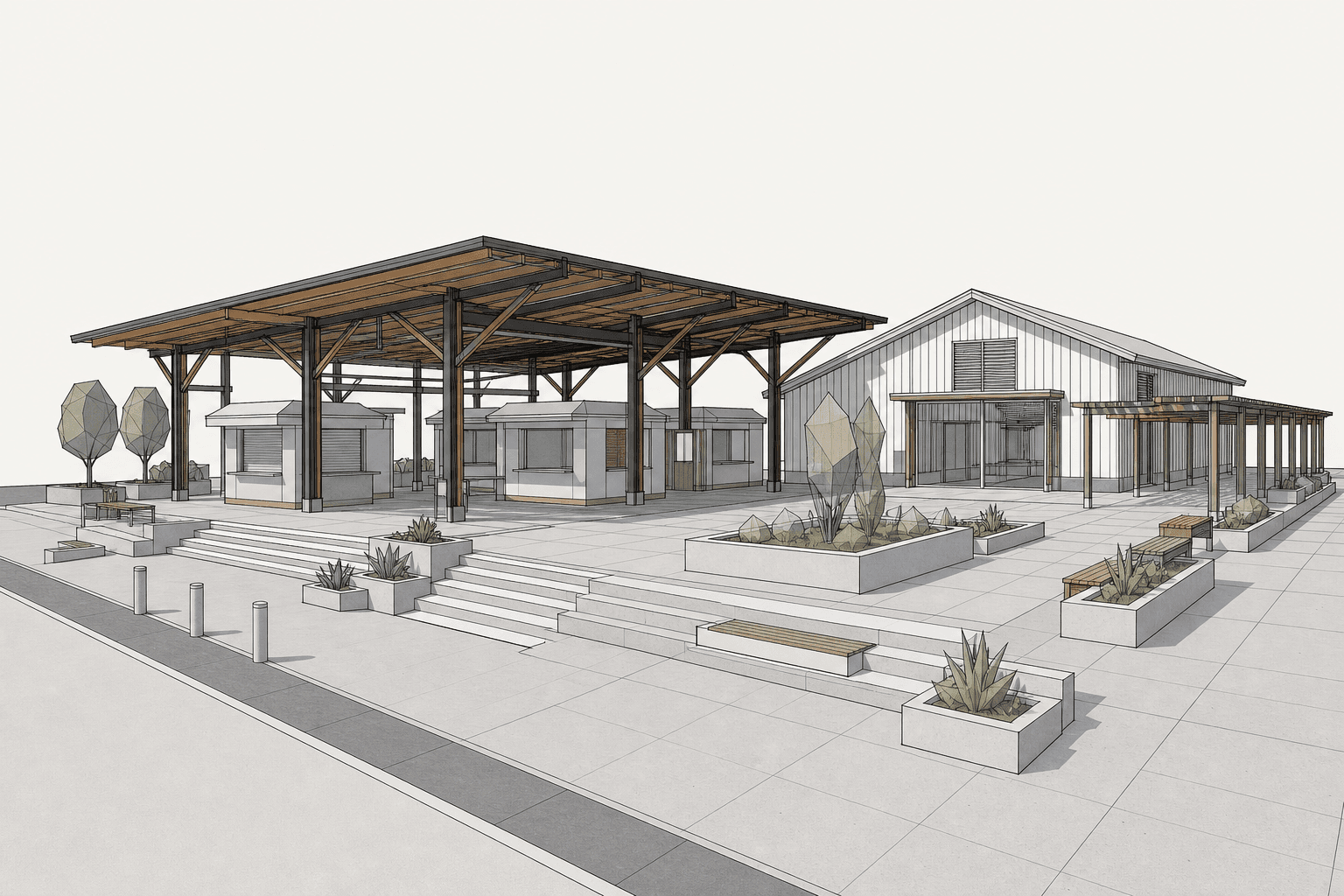
A SketchUp AI render is only as useful as the viewport you give it. If the camera is weak, the proportions are unclear, or the image hides important design decisions, AI will fill in the gaps. Sometimes that looks impressive. For practice work, it is dangerous.
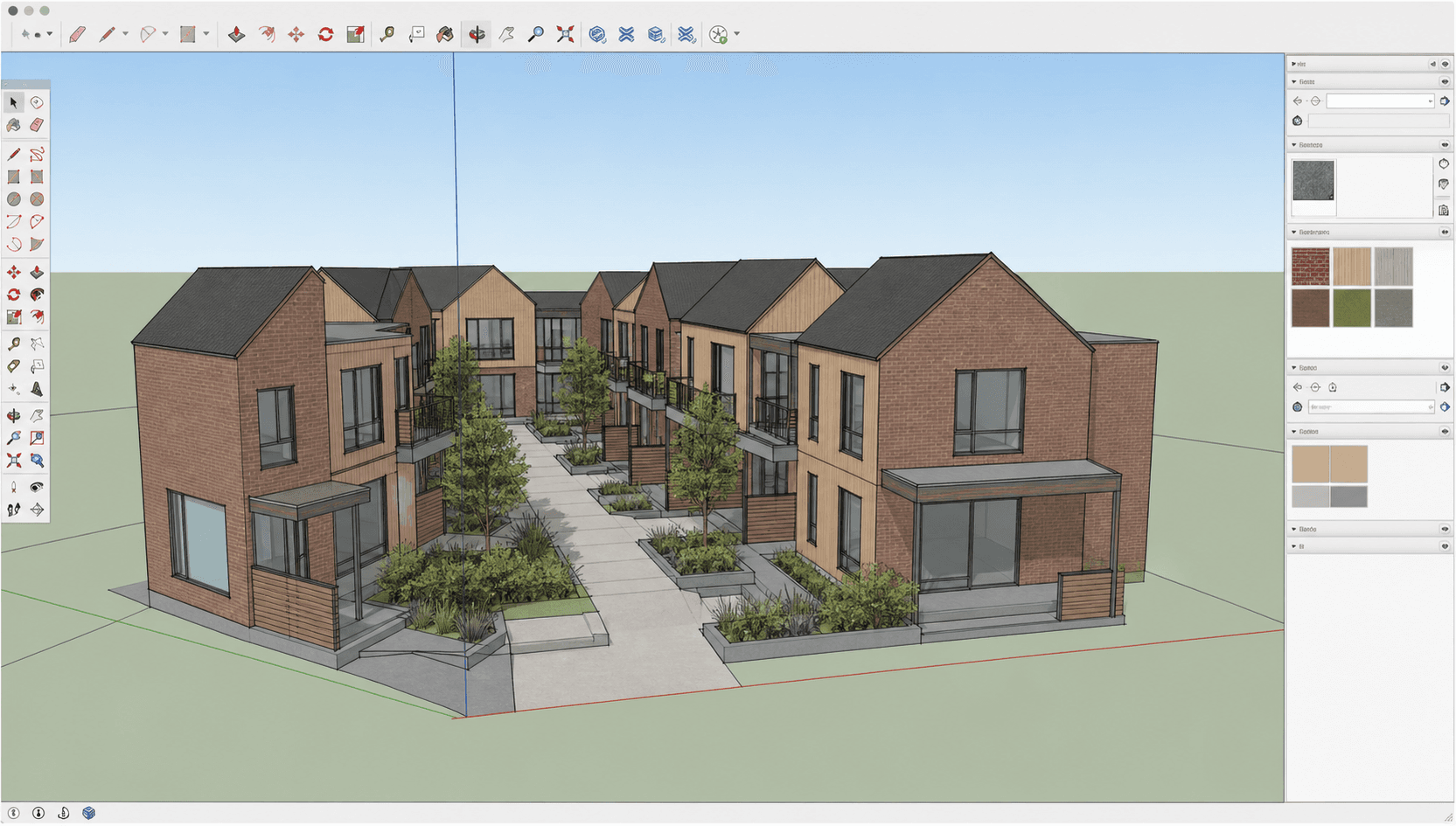
Before exporting, create a saved scene in SketchUp. Keep verticals controlled, avoid extreme wide-angle distortion, and frame the building the way you would frame the final presentation image. Turn on shadows only if they help describe the design. Keep entourage simple unless people, trees, cars, or furniture are part of the decision.
Export at a large size when possible. A clean 16:9, 4:3, or square composition is usually easier to reuse in boards and web previews than an accidental viewport crop. If you need a client image, do not start from the random angle you happened to be orbiting in.
Step-by-step SketchUp AI render workflow
- Save the camera scene. In SketchUp, create a scene for the exact view you want to present. This gives you a repeatable source if the first AI pass needs work.
- Export a clean model image. Use a shaded, monochrome, clay, or lightly textured style. Keep edges visible when they clarify openings and facade rhythm.
- Decide what the AI should preserve. List the non-negotiables: massing, roof form, glazing pattern, structural grid, main materials, landscape, and camera.
- Generate the first render pass. Use Rendervi when you want the output saved inside a project with history, presets, material edits, and later refinements.
- Review like an architect, not like an image fan. Check whether the AI changed window counts, stair geometry, roof edges, doors, facade modules, or site levels.
- Refine only what failed. Fix one material, improve daylight, remove an artifact, or push photo-realism. Do not keep regenerating the whole scene if 80% works.
- Save the approved direction as a preset. When the image language is right, reuse it on the next SketchUp camera so the project does not drift between views.
What to export from SketchUp
Where Rendervi fits
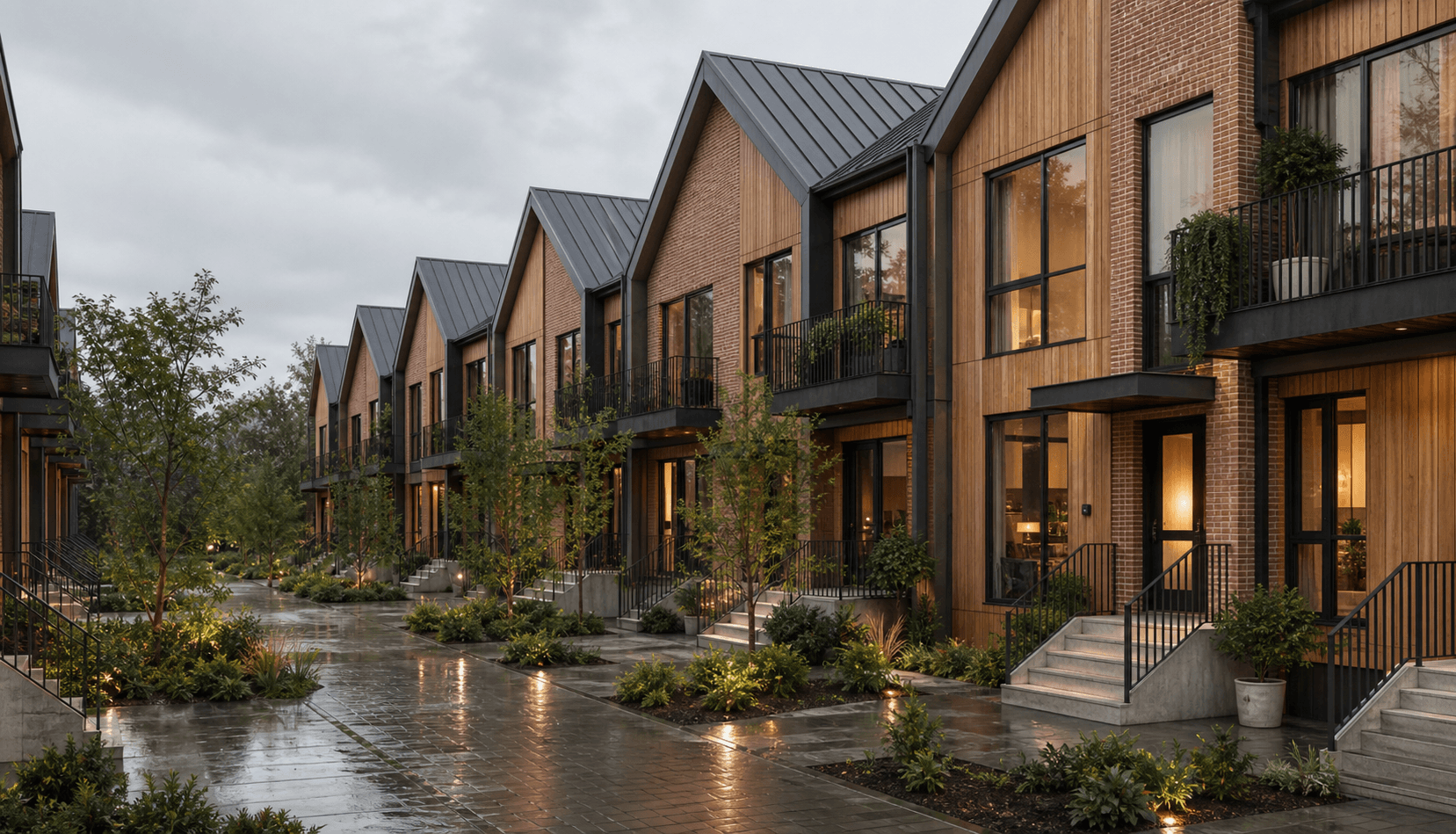
Native SketchUp AI Render is useful when you want quick ideation while staying inside the SketchUp interface. Rendervi is useful when the image becomes part of a project workflow: you want history, controlled render modes, material changes, upscaling, local refinements, saved presets, and consistency across more than one view.
A practical split is simple. Use SketchUp for modeling and camera control. Use native AI Render for very fast in-model experiments. Use Rendervi when the image needs to become presentable, reusable, comparable, or consistent with the rest of the project.
Rendervi is built around image-to-image architectural work. You upload the SketchUp source, choose a render mode, add a short instruction, generate the result, and keep the output in project history. If the render direction works, save it as a preset and apply that visual language to another camera angle later.
SketchUp AI Render vs Rendervi vs traditional renderers
Prompt patterns that work
Good prompts for SketchUp renders are short, specific, and anchored to the source image. Avoid asking for a new building. Ask for a better visualization of the building in front of the model.
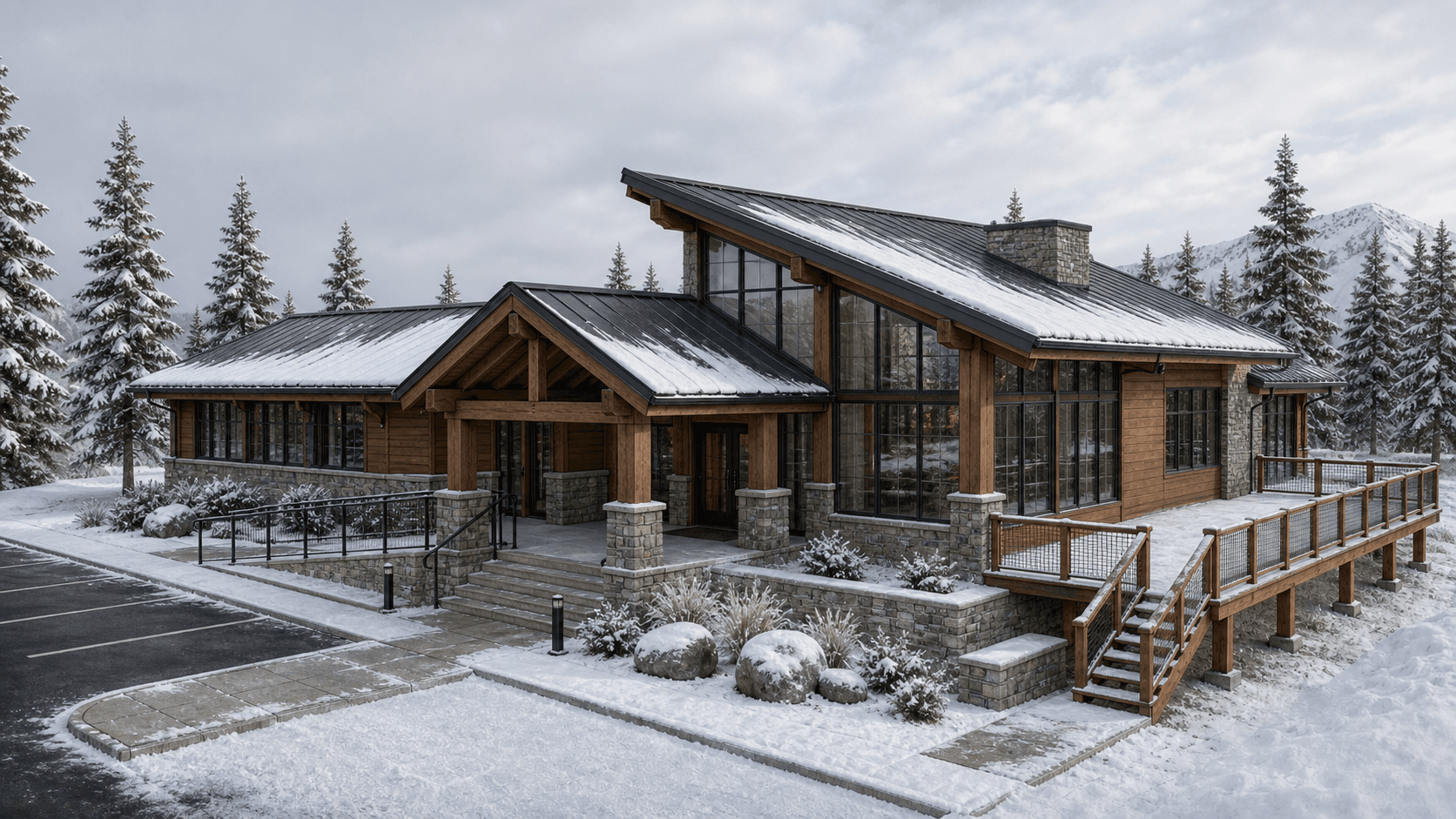
Early exterior: Preserve the exact building geometry, camera angle, roofline, window rhythm, and entry location. Turn this SketchUp model view into a realistic architectural render with warm daylight, natural landscaping, clear glass, pale brick, timber accents, and a calm client-presentation mood.
Material study: Keep the massing and openings unchanged. Explore a refined facade palette with light limestone, dark bronze metal frames, warm timber soffit accents, realistic texture scale, and grounded shadows.
Interior preview: Preserve the room layout, ceiling height, window positions, and camera. Improve this SketchUp interior into a realistic design review image with soft daylight, natural wood, neutral plaster, accurate furniture scale, and no extra walls.
Quality checklist before sending to a client
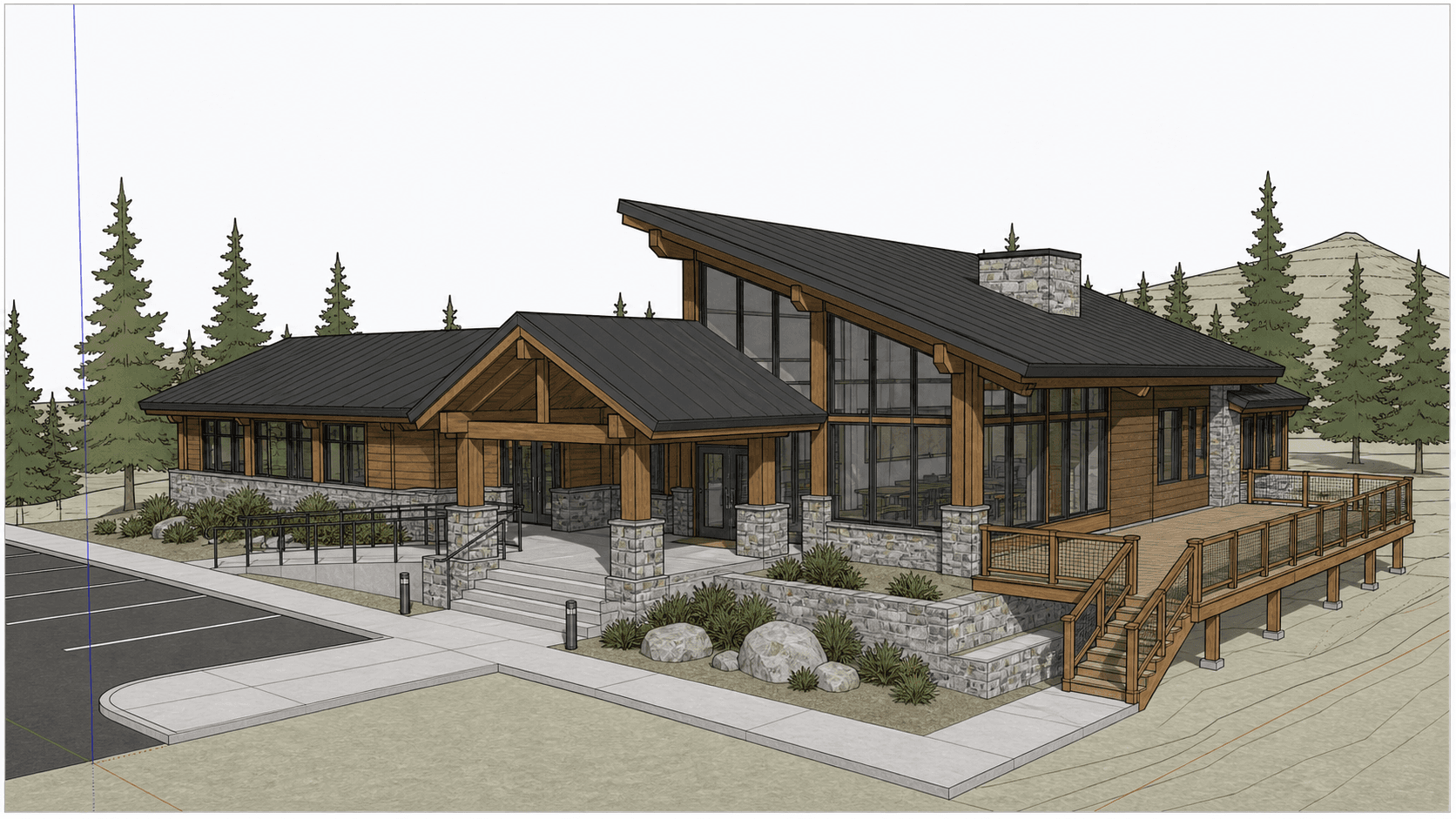
- The camera, massing, roofline, and main openings still match the SketchUp model.
- Materials are believable at architectural scale, not just attractive as texture.
- Glazing, railings, stairs, gutters, columns, and door positions are not invented.
- Entourage supports the design instead of covering weak areas.
- The image has enough resolution for the deck, board, or email where it will be used.
- Multiple views share the same light, weather, material language, and planting logic.
Common mistakes
- Starting from a messy viewport and expecting AI to understand the design anyway.
- Regenerating the whole image when only one material or detail needs a local edit.
- Using style words like cinematic, luxury, or award-winning before defining materials.
- Letting every view use a different prompt, which makes the project look inconsistent.
- Approving an image because it looks good before checking the architecture carefully.
FAQs
Can I make an AI render from a SketchUp screenshot?
Yes. A clean SketchUp screenshot or exported scene is one of the best starting points for AI rendering because it already defines camera, massing, and design intent.
Should I use SketchUp AI Render or Rendervi?
Use SketchUp AI Render for quick in-model ideation. Use Rendervi when you want a project-based workflow with history, render modes, local edits, upscaling, and presets for consistent follow-up views.
Will AI change my SketchUp design?
It can if the source image is unclear or the prompt asks for too much invention. Keep the source view clean, state what must be preserved, and review the output against the model before using it with a client.
What is the best SketchUp style for AI rendering?
For early concepts, a white or clay model with visible edges works well. For approved material schemes, use a textured view so the AI can preserve the intended palette.
Turn a SketchUp view into a better render
Upload a SketchUp scene, viewport export, clay render, or base image to Rendervi and turn it into a cleaner architectural visual with render modes, material edits, presets, and upscaling.
Create your first AI renderSources
- SketchUp Help: Getting Started with AI Render
- SketchUp Help: Using AI Render
- AIA: Architects are excited about the potential of AI, but concerns abound
- RIBA: Second RIBA AI Report shows surge in usage among UK architects
- Google Search Central: AI features and your website
- Google Search Central: Top ways to ensure content performs well in AI experiences