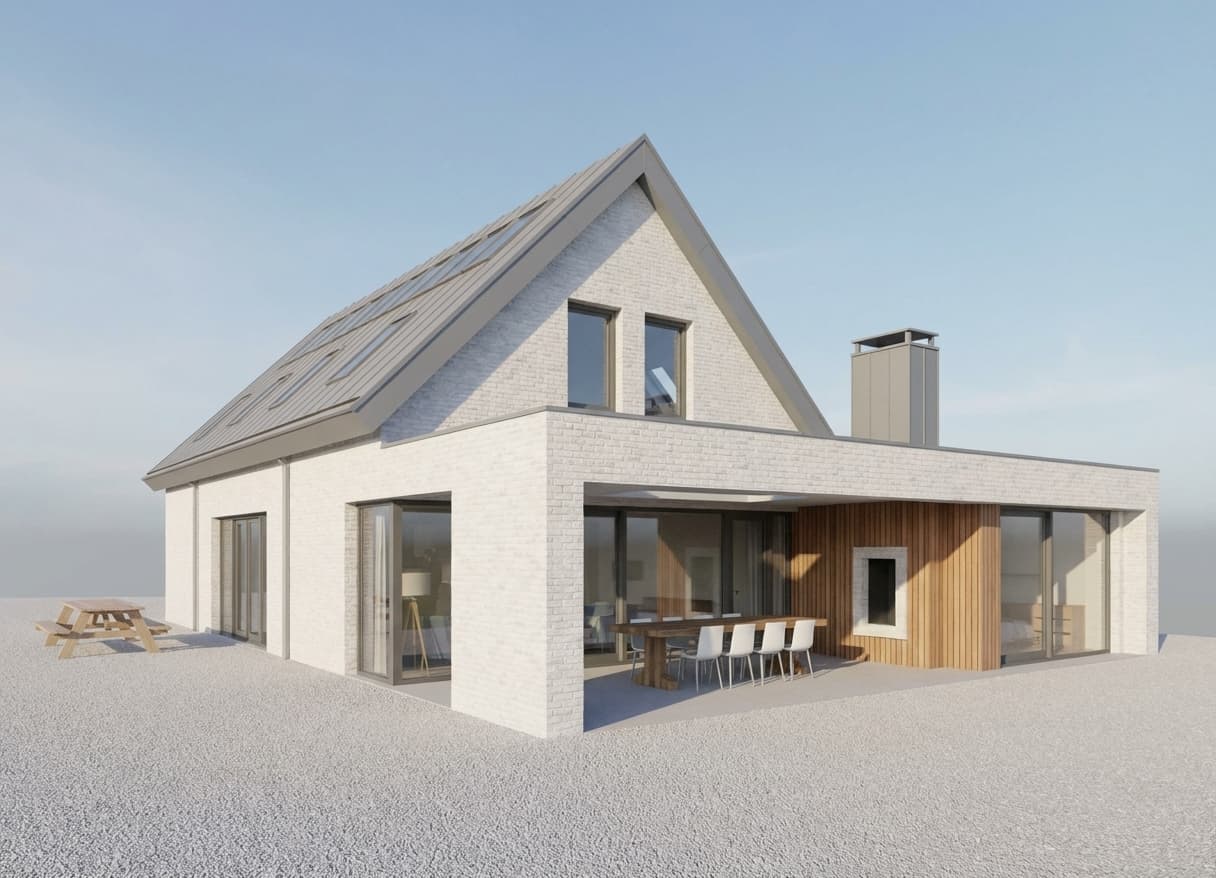
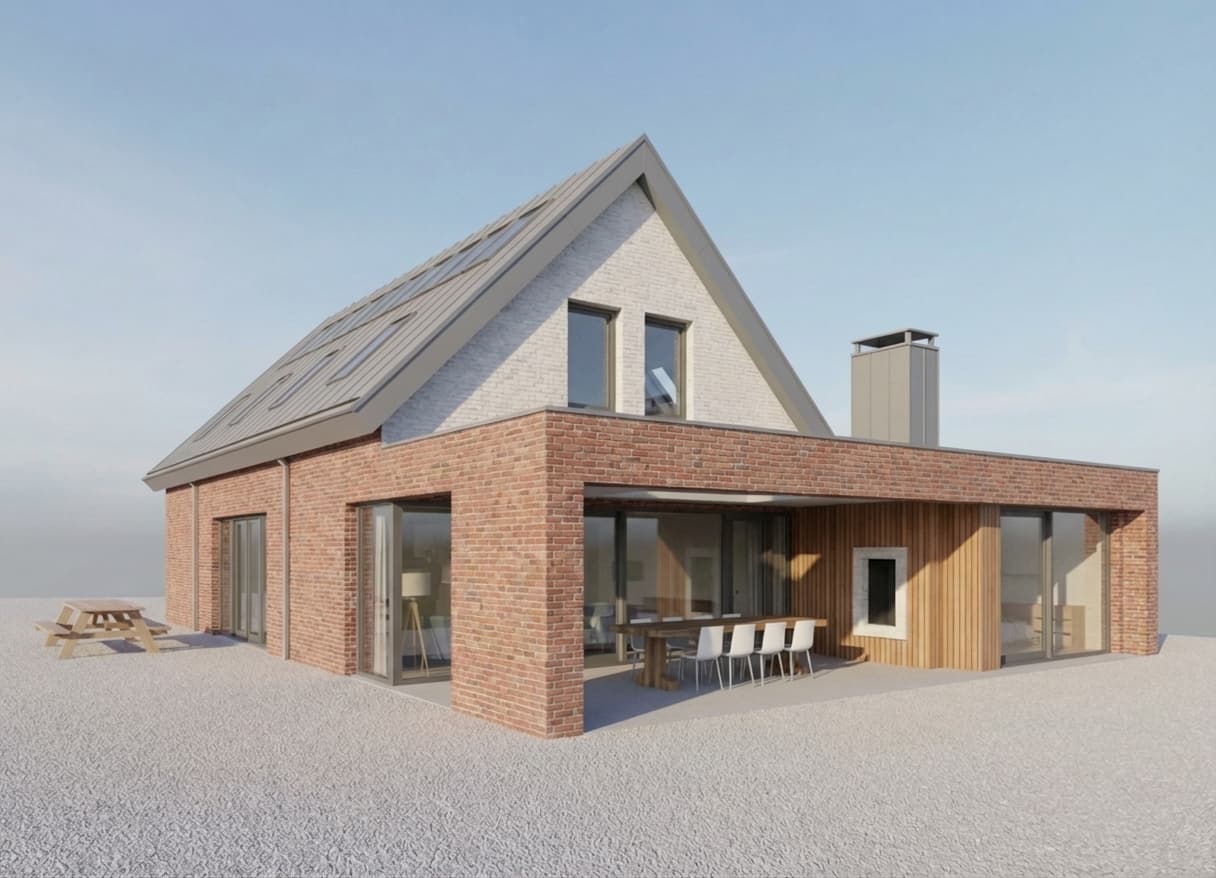
Render
Create a cleaner architectural render from a model view, clay render, or viewport screenshot.
AI workflows for architects
Most AI image tools make you explain the whole project again and again. Rendervi gives each render task a focused starting point, so you can improve the image, protect the design, and move faster with fewer prompt experiments.

Create a cleaner architectural render from a model view, clay render, or viewport screenshot.

Carry an approved visual direction into another image from the same project.

Build stronger site context and surroundings while keeping the architecture stable.

Push an approved image toward a more believable final architectural visual.

Change one selected part of the render without redesigning the rest of the image.

Increase resolution and clarity when the image is already right but too soft.

Use your own instruction when the project needs a specific transformation.

Make an idealized render feel closer to a believable built project.

Make the project feel like a natural on-site phone photo instead of a staged render.

Turn a project image into a contemporary concept presentation.

Develop planting, hardscape, and site structure around the building.

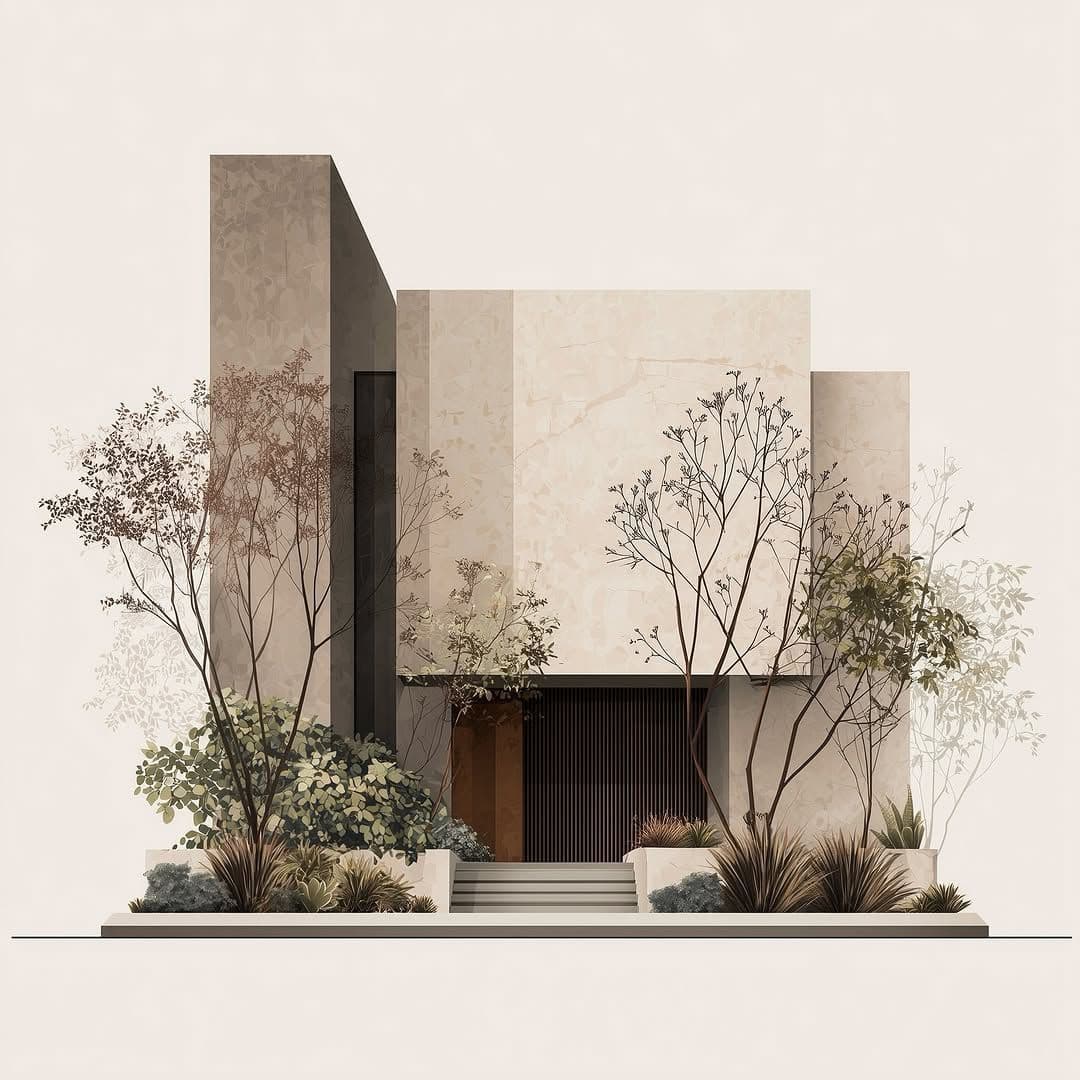
Create a calm, restrained architecture image with magazine-style clarity.

Test how the project reads in colder seasonal light and snowy context.

Add wet surfaces, reflections, and a moodier architectural atmosphere.

Ground the image with practical built details and less perfect CGI polish.
AI workflows
Use focused AI workflows for common architectural render problems: first renders, realism, site context, local edits, consistency, and final output.
Start with the problem you have: make a render, improve realism, change one detail, build context, or sharpen the final image.
Keep the design grounded while the workflow guides lighting, materials, surroundings, detail level, and output quality.
Use extended visual directions when a project needs a concept image, editorial mood, seasonal context, or built-reality check.
Workflow
Short, controlled steps for real architecture production work.
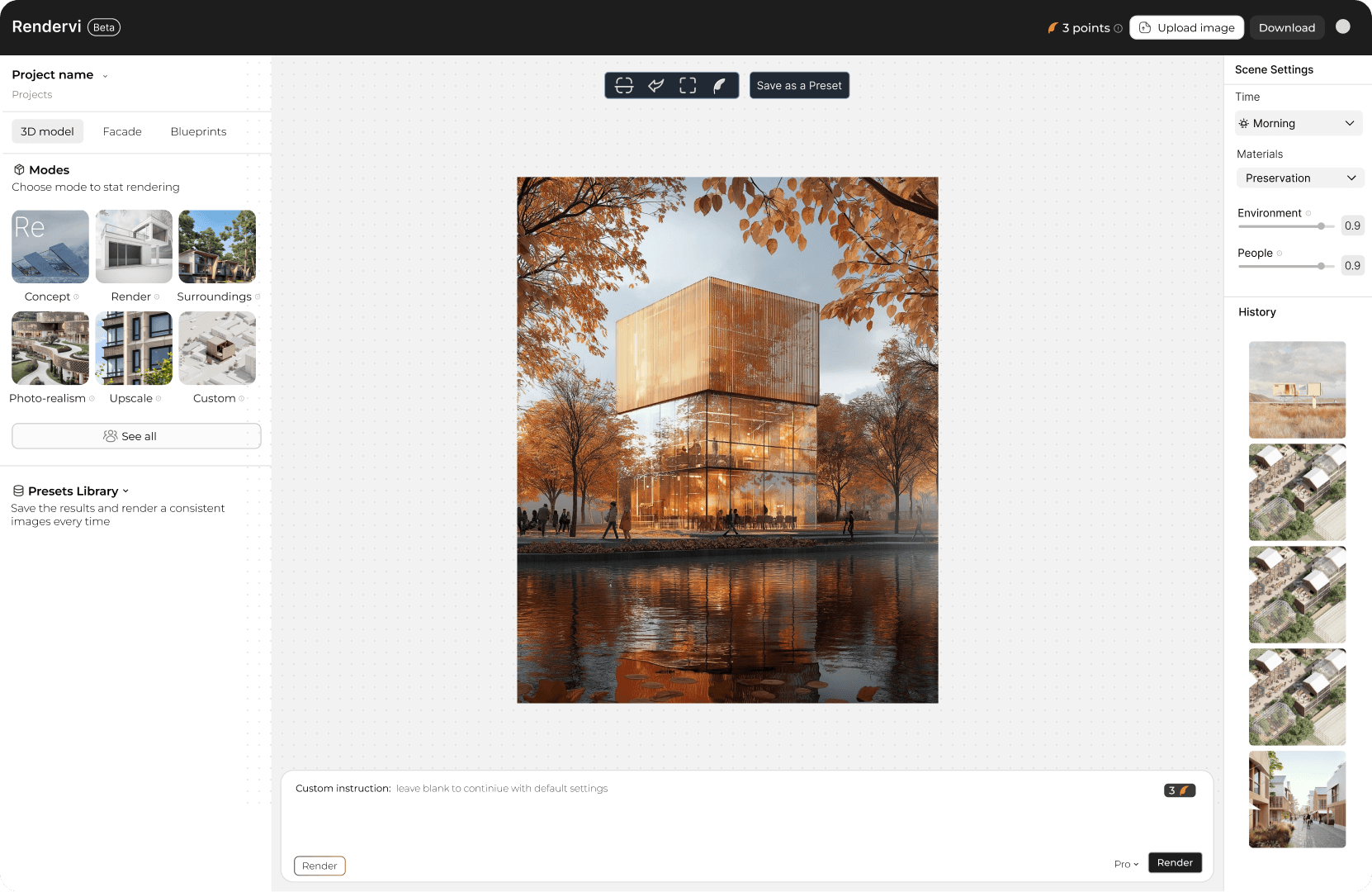
Decide what the image needs next: a clearer first render, better realism, a targeted edit, stronger site context, or sharper final output.

Rendervi gives the AI the right guardrails for that task, so the result is less random and the architecture stays connected to your source image.

Move from one workflow to the next: render a view, improve realism, edit a detail, reuse a direction, or upscale the result when it is ready.
FAQ
Simple answers for architects and visualization teams evaluating this Rendervi workflow.
Usually, only a short direction is enough. The workflow gives the AI the structure for the task, so you are not forced to describe the whole building, mood, materials, and output style from scratch.
Architecture tasks are different. A material edit, a first render, a realism pass, and an upscale need different guardrails. Rendervi separates those jobs so the result is easier to control.
Yes. You can render a view, improve realism, make a targeted edit, save a visual direction, and upscale the final image without leaving the project history.
Related solutions
Next step
Use Rendervi ai workflows to move from a project image to a stronger architectural visual without losing control of the design.